
Select your address to check availability
Technical Support

Troubleshooting Your Internet Connection
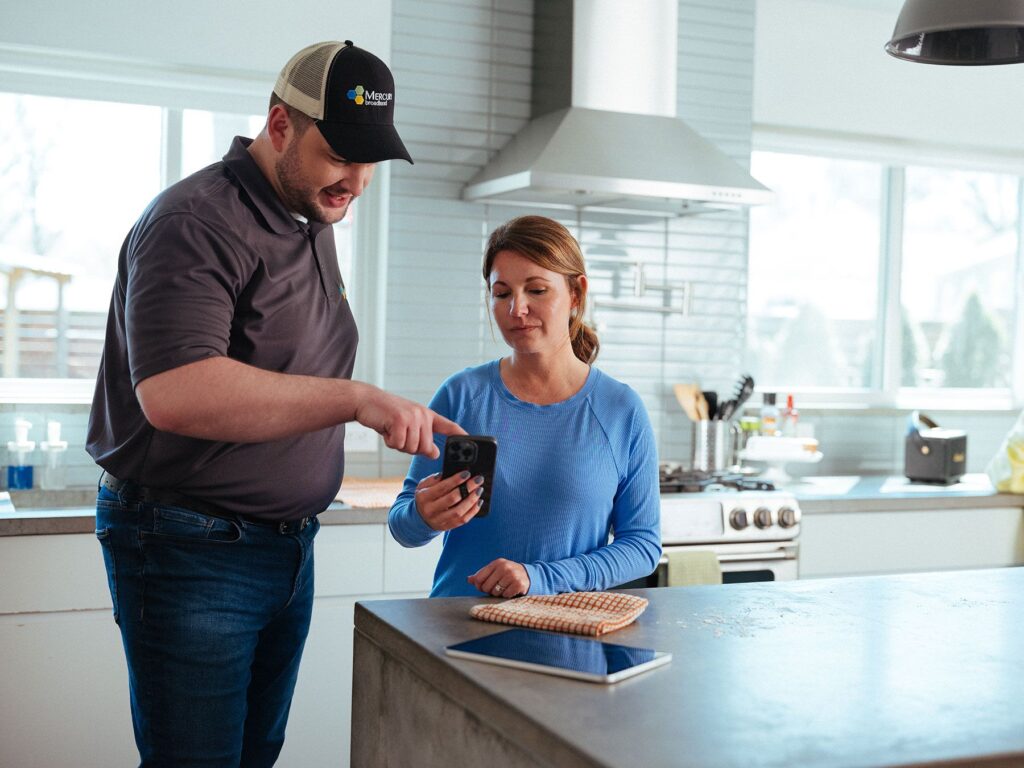
When using the Mercury @ Home or Mercury @ Work app, look at the top of the main screen for your network name and a GREEN CHECK MARK indicating “Internet Connected”. If the network connection drops, you’ll see a RED X with “Internet Not Connected”. A GREEN CHECK MARK indicates an established connection, and any issues are probably related to the end device(s) or Wi-Fi (refer to step 4 below).
If you encounter a RED X indicating “not connected”, inspect the Mercury Momentum™ router. If it lacks visible light, there is no power supply. Ensure the power is on and inspect for any loose plugs or connections at the router. Additionally, check the room’s power switch; if it’s off, switch it on. If the power breakers trip, resolve the issue. If the router lost power, it might be rebooting and reconnecting. Wait approximately 5 minutes. If the light still doesn’t appear, please contact the Mercury Technical Support Team at 800-354-4915.
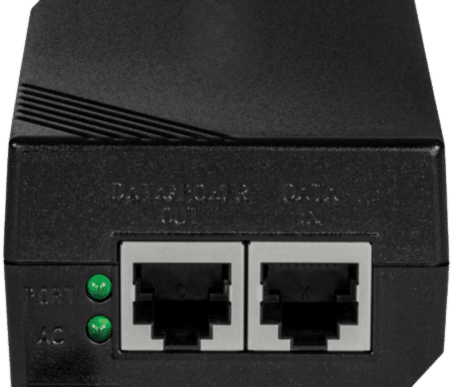
Check the front router light; it should be GREEN. If it appears orange or red, it has power but has lost its internet connection. First, inspect the Ethernet cable from our PoE power box (refer to the diagram below) to the router; ensure that the plugs are securely inserted at both ends. Next, verify that the power box’s lights are on. If the PoE power box’s lights are off, it has lost power or malfunctioned. Try unplugging the power box and Ethernet cable, then re-plug them to restore power. Once the PoE has power lights on, reconnect the Ethernet cable to the router. Wait approximately 5 minutes or until you see a GREEN light. If the PoE power lights do not turn on or the router’s front light is still orange or red, please call the Mercury Technical Support team at 800-354-4915.
If the router’s GREEN light is on and the app indicates that the router is “Internet Connected”, there is likely a device or Wi-Fi configuration issue. To troubleshoot, open the Mercury @ Home or Mercury @ Work app and select “Things” from the main or bottom menu. If you have already named all of your devices (which is strongly recommended), you should see the device that you’re concerned about displaying a green dot next to it, indicating it is “Online”. If you cannot locate the device in question, it is not connected, and the problem likely lies with that device.
If you’ve paused access for any devices, they will show an orange light next to them. To unpause, choose the specific device, and in the Options section at the bottom of the screen, switch the “Internet Access” button to “On” to re-enable Wi-Fi access for that device.
If you are still experiencing difficulties, please call the Mercury Technical Support team at 800-354-4915.
Troubleshooting Your Devices and Equipment

Check the Power and Connection of Your Devices
If you have checked that all connections are secure and correctly plugged in, restarting your devices may be helpful.
Step 1
Before power cycling your router, unplug the AC adapter cable from the back of the device. Wait 10 seconds before plugging the AC adapter cable back in.
Step 2
Restart any internet-connected devices that are not wireless after restarting your PC.
After restarting your devices, wait 1-2 minutes to allow them to fully power on and connect before checking your connection again.
Restart Your Mercury Equipment
Step 1
If you’ve restarted your devices but still encounter a connection issue, follow the steps below to restart the Mercury equipment.
Step 2
This power adapter resides inside the home or business and resembles a small power brick with active LED indicator lights.
Step 3
Next, unplug the AC (power) cable from the rear of the PoE. This cable should be connected on the side opposite the Ethernet cables. Wait 10 seconds to allow the device to power down. Then, reconnect the AC cable securely to the rear of the PoE.
Step 4
Wait 2 minutes for the Mercury equipment to reconnect to the network, then test your connection again.
Bypass Your Wireless Router
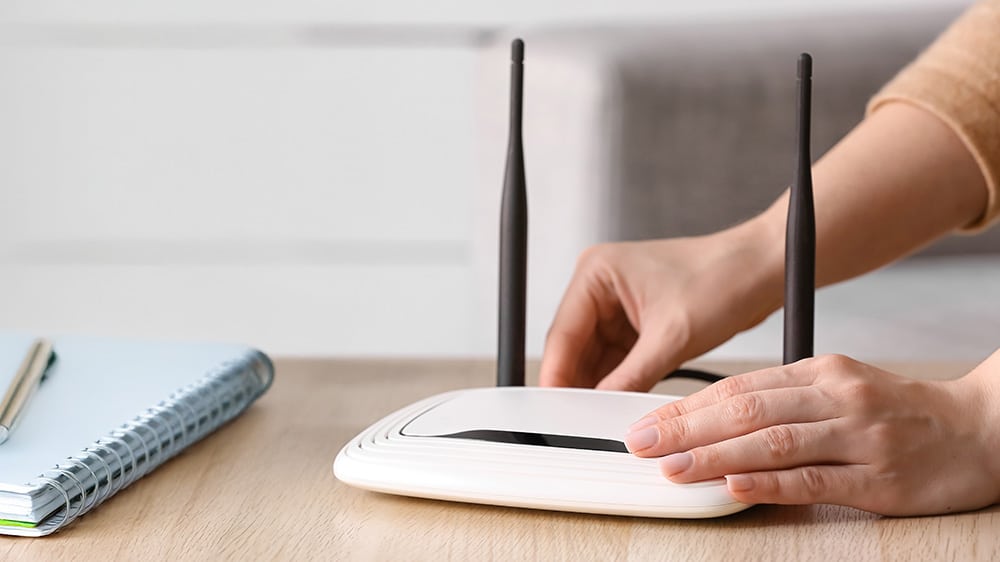
If you’ve restarted both your devices and the Mercury equipment but are still experiencing a connection issue, follow the steps below to verify an internet connection when you directly plug into the Mercury equipment.
Step 1
Verify that the AC cable is securely plugged into an outlet and inspect for an indicator light on the PoE adapter.
Step 2
Disconnect the Ethernet connection that plugs into your router’s WAN or Internet port. You can identify this port by checking for labels such as “WAN”, “Internet” or a yellow highlight on the back of the wireless router.
Step 3
Plug this same Ethernet connection directly into your PC.
Step 4
Perform a full restart of your computer.
Technical Support FAQs
Buffering does not always mean there is a problem with your internet connection. It can also be caused by the TV, Wi-Fi signal strength, router placement or interference inside the home.
Common causes include:
- The TV is too far from the router.
- Walls, floors, furniture or appliances are weakening the Wi-Fi signal.
- The TV is connected to a crowded or weaker Wi-Fi band.
- Other devices are using a large amount of bandwidth at the same time.
- The TV’s software or streaming app needs to be restarted or updated.
- The TV has older or lower-quality Wi-Fi components.
- Nearby networks, Bluetooth devices, printers, baby monitors or microwaves are creating interference.
Restarting the TV, streaming app and router may help. Moving the router to a more central location or connecting the TV with an Ethernet cable may also improve performance.
A 2 Gig internet plan provides up to 2 Gig of speed to the home, but an individual device may not be capable of receiving the full speed. Several factors can affect the result:
- The device may only support speeds of 1 Gig or less.
- The device’s Ethernet port, network card or Wi-Fi adapter may have a lower speed limit.
- The Ethernet cable may not support multi-gig speeds.
- The router or mesh system may not support speeds above 1 Gig.
- Wi-Fi speeds are affected by distance, interference and the capabilities of the device.
- Other devices may be using the connection during the speed test.
The most accurate test is usually performed with a compatible computer connected directly to a multi-gig Ethernet port using the appropriate cable.
Your internet plan describes the speed delivered to your home. Wi-Fi is the wireless connection between your router and your devices. Wi-Fi speeds can be lower because of:
- Distance from the router
Walls, floors and other obstacles - Wireless interference
The age and capabilities of the device - The Wi-Fi technology supported by the router
- The number of connected devices
- The Wi-Fi band being used
A wired connection will usually provide a faster and more consistent result than Wi-Fi.
Internet is the service that connects your home to websites, streaming services, apps and other online resources. Wi-Fi is the wireless signal created by your router that allows phones, televisions, computers and other devices to connect to that internet service. It is possible for the internet connection to be working correctly while a device is having trouble with Wi-Fi.
Wi-Fi signals become weaker as they travel through a home. The signal can be affected by:
- Distance from the router
Multiple walls or floors - Concrete, brick, metal or stone
- Large appliances
- Mirrors and aquariums
- Interference from nearby electronics or networks
Placing the router in a central, elevated and open location can improve coverage. Larger or multi-level homes may benefit from a mesh Wi-Fi system or extender.
For the best coverage, place the router:
- Near the center of the home
- In an open and elevated location
- Away from floors, cabinets and closets
- Away from large appliances, metal objects and aquariums
- Away from microwaves, cordless phones and other electronics
- As close as practical to heavily used devices
Avoid placing the router in a basement corner, behind a television or inside a cabinet.
Each Wi-Fi band has different strengths.
- 2.4 GHz travels farther and passes through walls more easily, but it generally provides lower speeds and experiences more interference.
- 5 GHz provides faster speeds but usually has a shorter range.
- 6 GHz can provide very fast performance with less interference, but it has a shorter range and requires compatible Wi-Fi 6E or Wi-Fi 7 devices.
The best band depends on the device’s location, capabilities and how it is being used.
Routers manage many devices and connections at the same time. Over time, a router may experience a temporary software error, overloaded memory or difficulty communicating with a particular device. Restarting the router allows it to:
- Clear temporary errors
- Reconnect to devices
- Refresh its network connection
- Select a less congested Wi-Fi channel
- Install certain updates
Restarting can resolve temporary issues, but frequent problems may indicate a placement, equipment, device or service issue that needs further investigation.
A router should not normally require constant restarting. Restarting it occasionally may help resolve a temporary issue, but needing to restart it frequently could indicate:
- Outdated equipment
- Poor router placement
- Wi-Fi interference
- A device causing network problems
- A wiring or equipment issue
- A problem that requires technical support
Before restarting, allow the router sufficient time to reconnect after a power interruption or update.
When only one device is affected, the issue is often related to that device rather than the internet connection. Possible causes include:
- Outdated device software
- An outdated Wi-Fi adapter
- Low available storage or memory
- A problem with the app or browser
- Incorrect network settings
- A weak internal antenna
- Malware or unwanted software
- The device being connected to the wrong Wi-Fi network
Restarting the device, forgetting and reconnecting to the Wi-Fi network, and checking for updates may help.
Wi-Fi bars show the strength of the connection between the phone and the router. They do not necessarily show the quality or speed of the internet connection. Slow performance may be caused by:
- Network congestion
- An overloaded website or app
- Other devices using bandwidth
- A temporary internet issue
- Interference
- A phone software issue
- A VPN or security application
- Background downloads or updates
Testing more than one app or website can help determine whether the issue is specific to one service.
As you move farther from the router, your device may lose the stronger signal and attempt to connect to another band, extender or mesh access point. Disconnections can happen when:
- Coverage does not overlap properly
- An extender is too far from the router
- The device holds onto a weak signal
- The home has Wi-Fi dead zones
- The device does not switch smoothly between access points
Router placement, mesh system configuration and device software can all affect how smoothly the connection changes throughout the home.
Video calls require a stable connection in both directions. A brief interruption may freeze the picture or distort the audio even when regular websites appear to work normally. Possible causes include:
- Weak Wi-Fi signal
- Network interference
- Limited upload performance
- Other devices uploading files or video
- A VPN
- The video platform itself
- An overloaded or older computer
- A poor-quality webcam or headset connection
Moving closer to the router or using a wired connection can improve video call reliability.
Yes. Every connected device uses some portion of the network’s capacity, especially when streaming, gaming, downloading files, installing updates or backing up photos and videos. Smart home devices may use only a small amount of bandwidth individually, but a large number of active devices can affect router performance. Newer routers are generally better at managing many connected devices than older models.
Many smart home devices use relatively little data during normal operation. Smart cameras and video doorbells can use much more because they regularly upload or stream video. Devices that may use more data include:
- Security cameras
- Video doorbells
- Cloud-connected DVR systems
- Smart televisions
- Gaming consoles
- Devices performing automatic backups
- Computers downloading updates
The amount of data used depends on video quality, recording frequency and how often the device is accessed remotely.
Many smart plugs, thermostats, doorbells, appliances and other connected devices are designed to use 2.4 GHz Wi-Fi. Manufacturers often choose 2.4 GHz because it:
- Travels farther
- Passes through walls more effectively
- Uses less power
- Is sufficient for devices that do not need high speeds
The phone used during setup may also need to be connected to the 2.4 GHz band temporarily.
A wired Ethernet connection is usually faster, more stable and less affected by interference than Wi-Fi. Ethernet is especially useful for:
- Desktop computers
- Gaming consoles
- Smart televisions
- Work computers
- Video conferencing
- Large downloads
- Devices located near the router
The maximum speed will depend on the device’s Ethernet port, the router port and the category of cable being used.
Gaming performance is affected by more than download speed. Latency, Wi-Fi stability, the game server and the gaming device can all affect the experience. Common causes of lag include:
- Weak Wi-Fi signal
- Wireless interference
- Other devices downloading or streaming
- Game server congestion
- A distant game server
- Background updates
- An older router or gaming device
- Using Wi-Fi instead of Ethernet
Connecting the gaming system directly to the router can often provide a more stable experience.
Speed test results can change depending on:
- Whether the test is conducted over Wi-Fi or Ethernet
- The device being used
- The speed test server selected
- Other internet activity in the home
- The time of day
- Browser performance
- VPN or security software
- Distance from the router
For a more accurate comparison, use the same wired device, server and testing conditions each time.
Each television may have different hardware, software and Wi-Fi capabilities. The television experiencing problems may:
- Be farther from the router
- Have an older Wi-Fi adapter
- Need a software update
- Have limited memory
- Be running an outdated streaming app
- Be connected to a weaker Wi-Fi band
- Have interference nearby
Testing the same streaming service on another device in the same room can help identify whether the issue is with the television or the network.
Not necessarily. Faster internet provides more capacity, but each device has its own performance limits. An older phone, computer or television may still be limited by:
- Its Wi-Fi generation
- Processor speed
- Available memory
- Ethernet port
- Internal antenna
- Operating system
- Application performance
A faster plan can help a household support more activity at once, even when an individual device cannot use the plan’s maximum speed.
Contact technical support when:
- Multiple devices cannot connect
- The internet connection repeatedly drops
- Router or modem lights indicate a problem
- Wired and wireless devices are both affected
- Restarting the equipment does not resolve the issue
- Performance suddenly changes throughout the home
- Equipment appears damaged or unusually hot
- The same problem continues over several days
Internet performance can vary based on activity inside the home and demand on the websites or services being used. Possible causes include:
- More household members are streaming, gaming or downloading at the same time
- Devices are performing automatic updates or cloud backups
- A streaming service, game server or website is experiencing heavy traffic
- Nearby Wi-Fi networks are creating additional interference
- A device is running background activity without the user realizing it
Checking which devices are active and comparing wired and wireless performance can help identify the cause.
Yes. Nearby Wi-Fi networks may use the same or overlapping wireless channels, especially in apartments, neighborhoods with closely spaced homes or areas with many routers. This interference can cause:
- Slower Wi-Fi speeds
- Unstable connections
- Buffering
- Delayed device response
- Devices disconnecting and reconnecting
Modern routers can often automatically select less congested channels. Router placement and using the 5 GHz or 6 GHz band may also help reduce interference.
Even a short power interruption can cause the modem, router and connected devices to restart. The equipment may need several minutes to:
- Restore its connection
- Restart network services
- Reconnect to Mercury’s network
- Reassign connections to household devices
- Allow smart devices to reconnect
If service does not return after the equipment has fully restarted, check the power connections and equipment lights before contacting technical support.
A virtual private network, or VPN, sends internet traffic through an additional secure connection. This protects information but can reduce speed and increase latency. VPN performance may be affected by:
- The location of the company’s VPN server
- The number of employees using it
- Security and encryption requirements
- Company network limitations
- The computer’s processing capabilities
- Wi-Fi signal strength
A wired connection may improve stability, but Mercury cannot control the performance of an employer’s VPN or network.
Streaming services may automatically lower video quality when they detect an unstable connection or when the service is trying to start the video quickly. Other possible causes include:
- The streaming app is set to a lower video quality
- The television does not support the selected resolution
- The streaming service is limiting quality
- The device is connected to a weaker Wi-Fi signal
- Other household devices are using network capacity
- The content itself is not available in high definition or 4K
Checking the streaming app’s quality settings and testing another program may help identify the cause.
Wireless printers often enter sleep mode or lose their connection to the router. They may also have difficulty reconnecting after the Wi-Fi network or router restarts. Common causes include:
- A weak Wi-Fi signal
- The printer being connected to an old network name
- The printer receiving a new network address
- Outdated printer software
- Power-saving settings
- The printer only supporting 2.4 GHz Wi-Fi
- Router placement or interference
Restarting the printer and reconnecting it to the correct Wi-Fi network may resolve the issue.
Security cameras and video doorbells send video from the device to the internet, so they depend heavily on a strong Wi-Fi connection and stable upload performance. Delays may be caused by:
- Weak outdoor Wi-Fi coverage
- Brick, metal siding or exterior walls blocking the signal
- Distance from the router
- Low camera battery
- Cloud service delays
- High video-quality settings
- Other devices uploading data
- The camera manufacturer’s app or servers
A mesh Wi-Fi access point placed closer to the camera may improve the connection.
A Wi-Fi extender can improve coverage in areas where the router’s signal is weak, but it does not increase the speed of the internet plan. Extenders may be helpful when:
- One part of the home has weak coverage
- A device is located too far from the router
- Walls or floors are blocking the signal
However, an extender must still receive a strong signal from the main router. If it is placed too far away, it may repeat a weak connection. A mesh Wi-Fi system may provide better performance in larger or multi-level homes.